
Take notes while reading
Write down thoughts in the side panel as you read. The page title and URL are saved automatically.
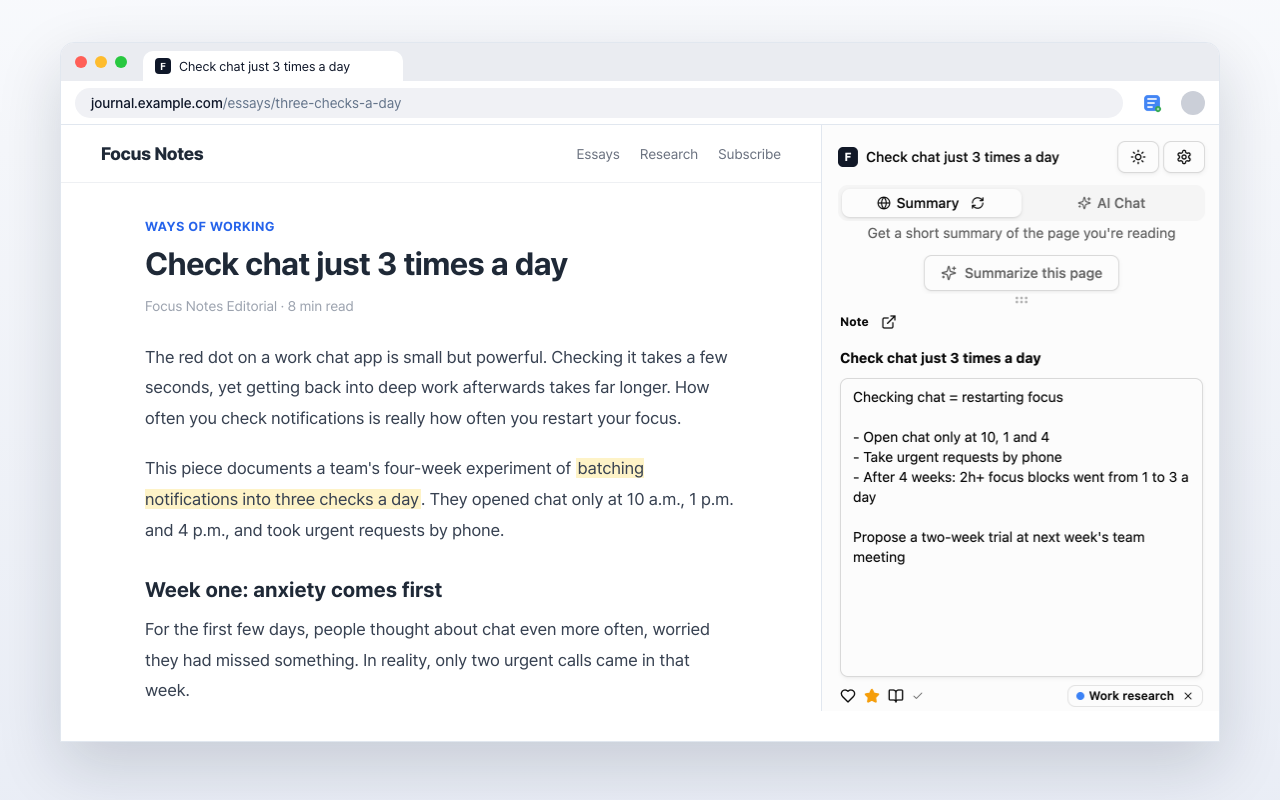
Preview Web Memo
Write your own note in the side panel while you read.
Features
Key Features
Five ways to keep a thought while you read.
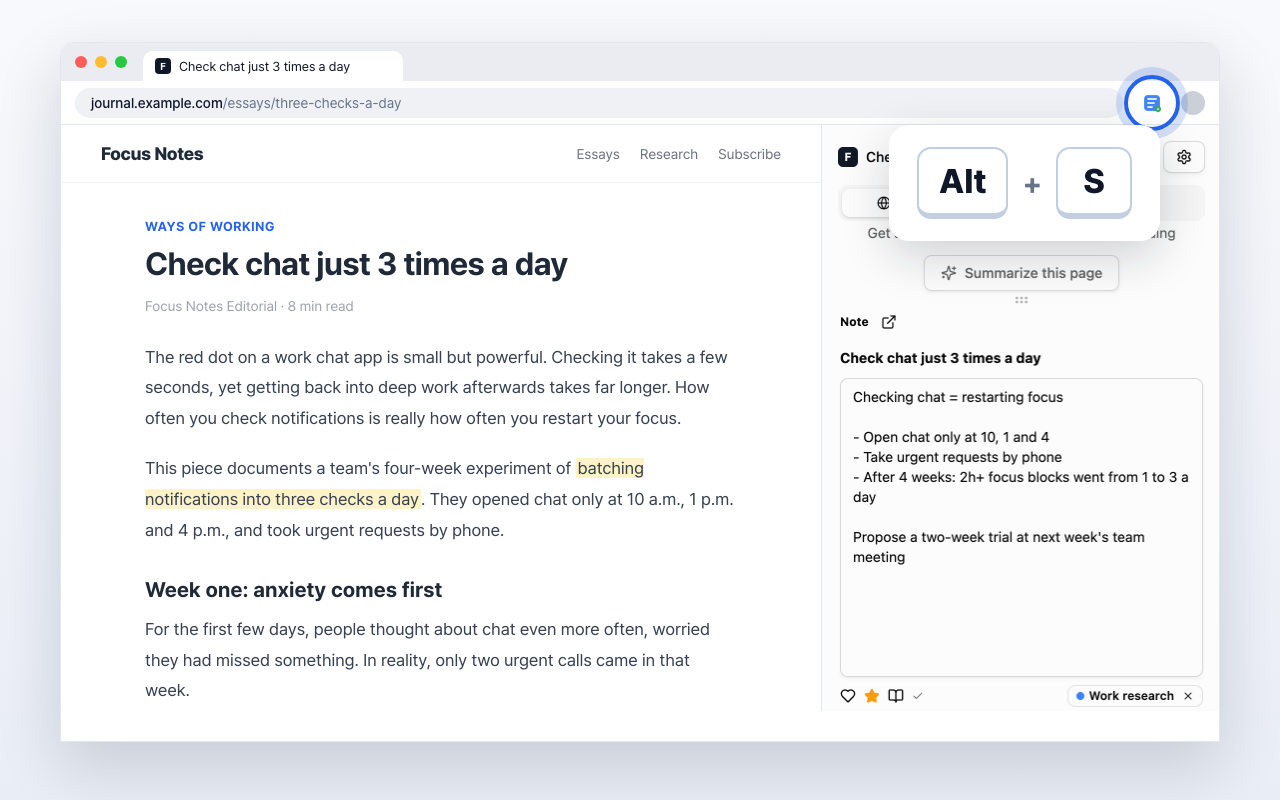
Open it with Alt+S
Open the side panel with a shortcut and start writing. On Mac, press Option+S.
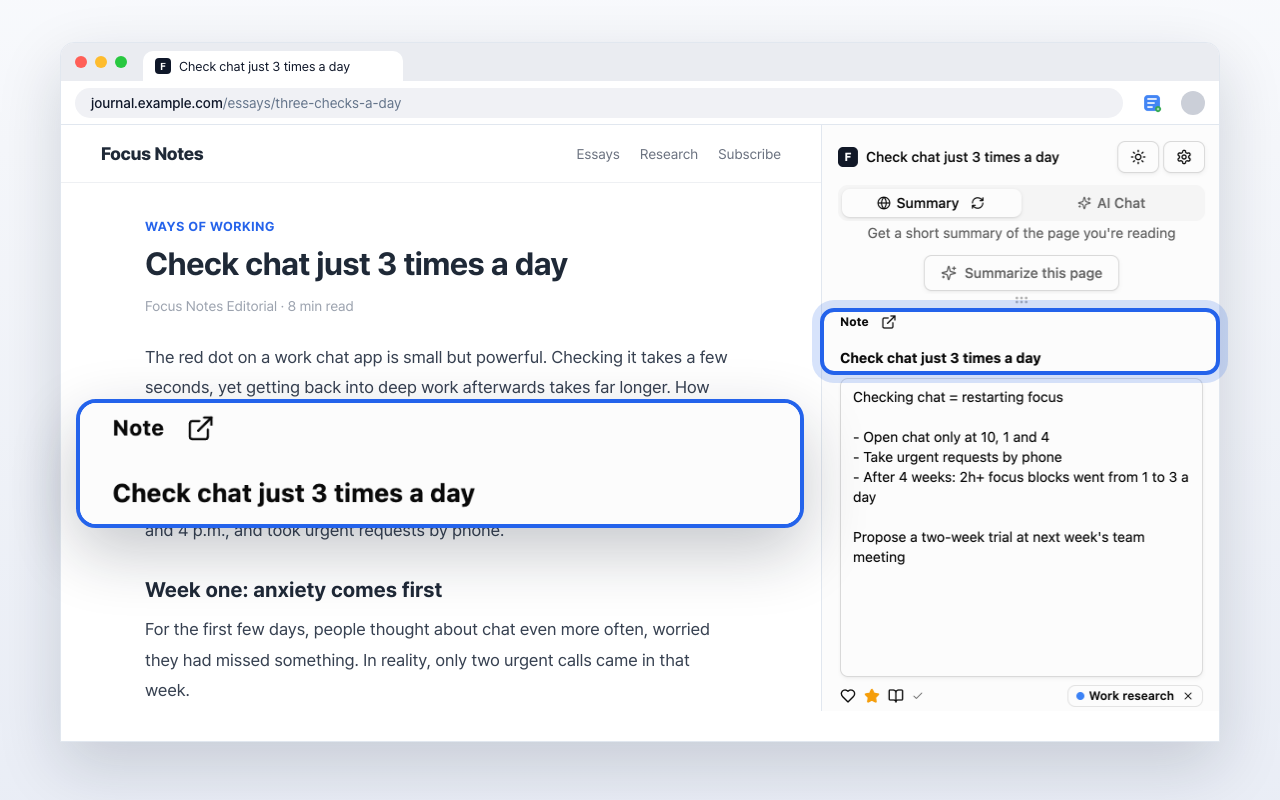
Keep the source with your note
The page title and URL stay with your note so you can return to the original.
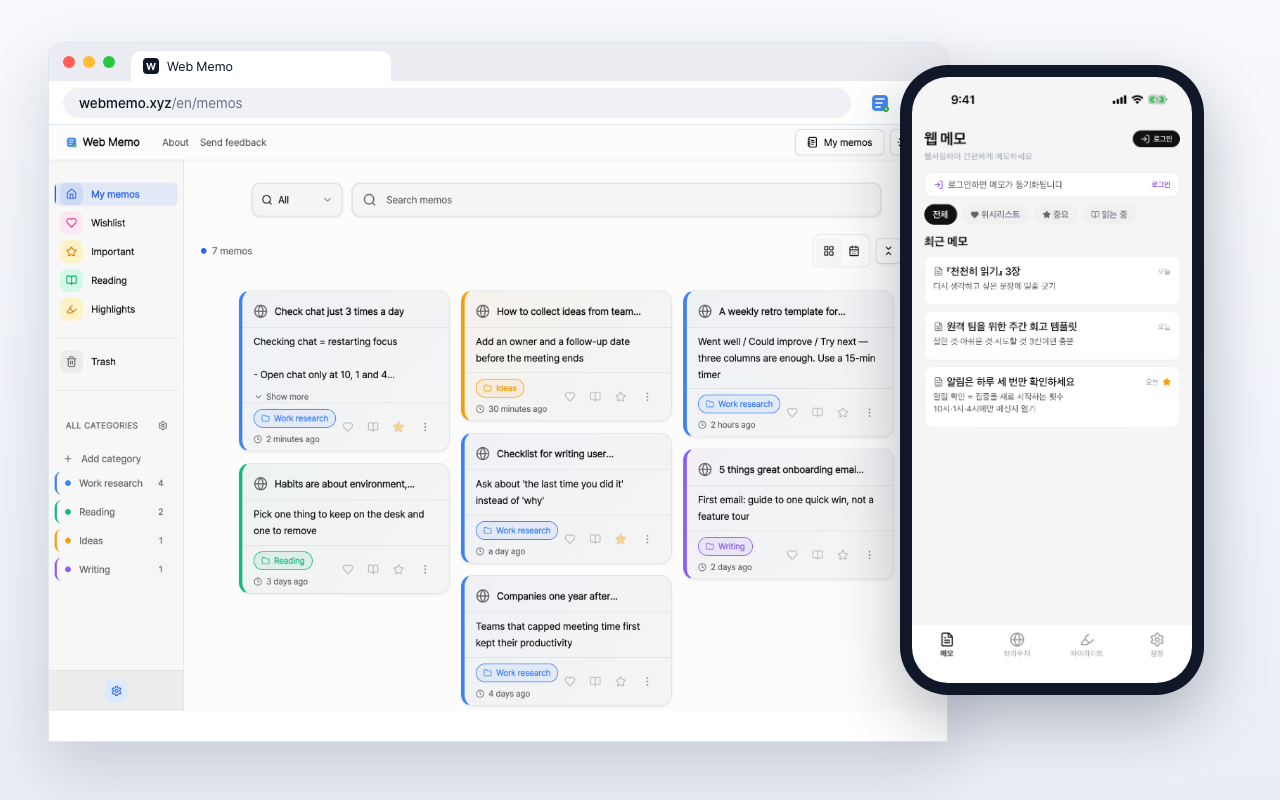
See your notes on web and app
Sign in with the same account to see your notes on web and in the app.
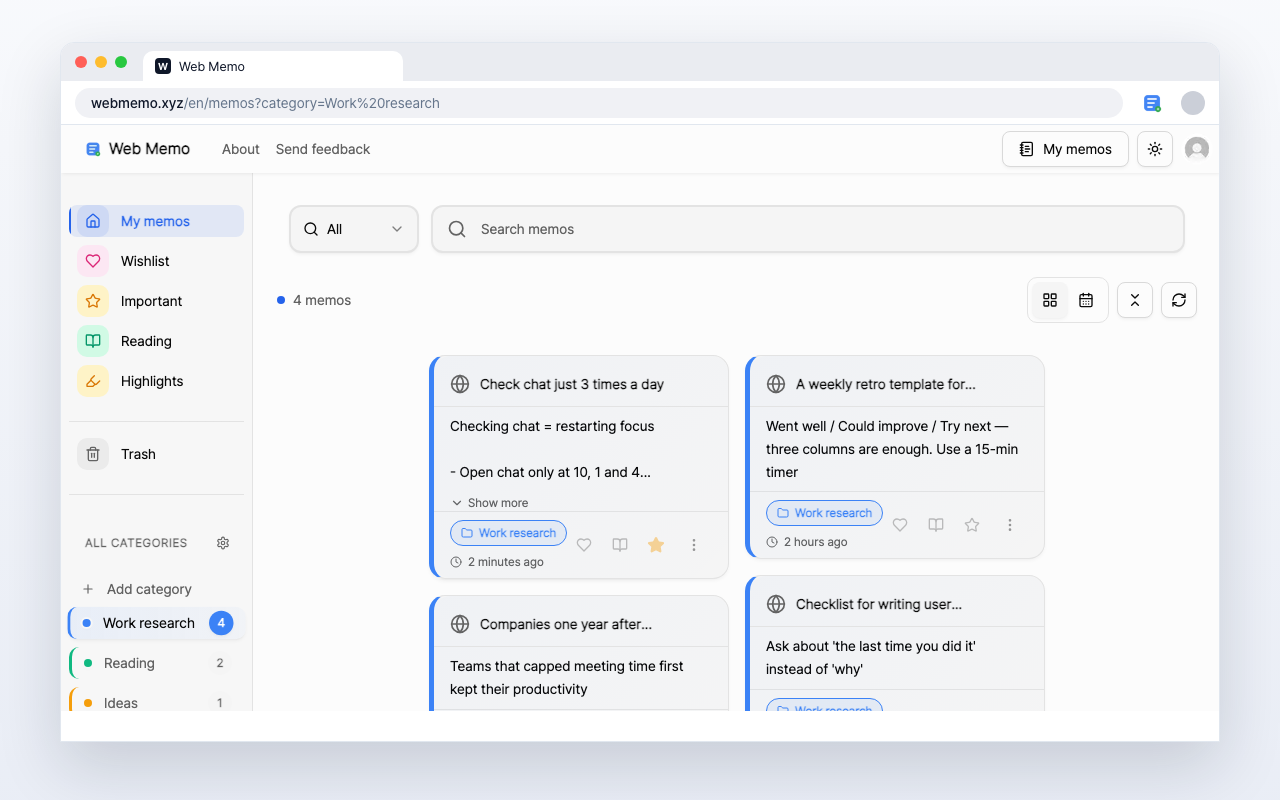
Find notes by category
Add categories to your notes so you can find and revisit them by topic.
Web Memo by the numbers
The numbers so far
- 500+
- Installs
- 6,707+
- Memos Saved
Chrome Web Store installs
Total memos saved by users
How to get started
Install the extension and write your first note beside the page you are reading.
- 1
Install the Chrome extension
Add Web Memo from the Chrome Web Store.
- 2
Open the side panel
Press Alt+S beside the page. On Mac, press Option+S.
- 3
Write your note
Write your thought; the page title and URL stay with it.
Recommended for
Web Memo helps in various situations
Students & Researchers
Save just the key points from online lectures and research. Keep references for your paper together with their sources.
Research & Work
Collect competitor analysis and trend research in one place. Pull it back up by search when you need it.
Job Seekers
Keep job postings and company research in one place. Gather what you'll reread before the interview.
News & Articles
Save the articles and insights that matter. Leave a note on the parts you'll come back to.
YouTube Learning
Write down thoughts while watching a video. Its URL stays with your note.
Write beside the next page you read
Add Web Memo to Chrome, open the side panel, and write on the page you are reading.
Learn more